.png?width=300&height=103&name=Ads%C4%B1z%20tasar%C4%B1m%20(6).png "Adsız tasarım (6)")

Yazılım geliştirilirken kodlarda yapılan değişikliklerin kaydedilerek daha güvenli ve sürdürülebilir şekilde yapılmasına olanak sağlayan; değişikliklerin ne olduğu, kimin değişiklik yaptığı gibi konularda bilgi almamızı sağlayan hızlı ve dağıtık bir versiyon kontrol sistemidir.
Git komutlarını incelemeye başlamadan önce basit bir şema üzerinde Git yaşam döngüsünde kullanılan alanları inceleyelim:
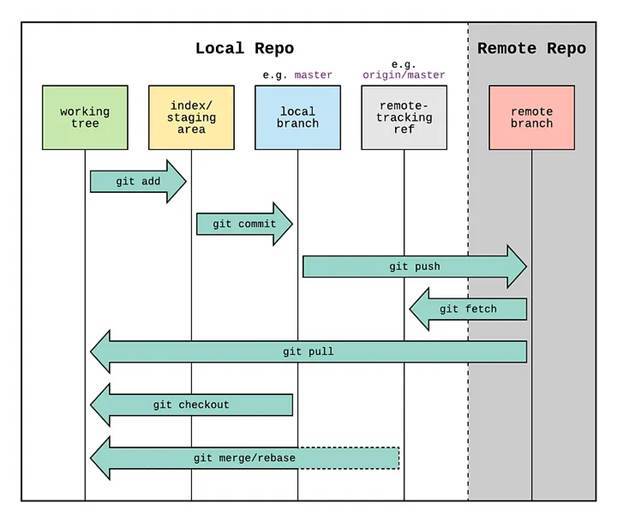
git komutları ve kullanılan alanlar
Burada temel olarak iki bölüm bulunmakta. Bunlardan birincisi “Local Repo” yani yerel ortamımız, ikincisi ise “Remote Repo” yani projenin tutulduğu uzak repository. Yazılım geliştiriciler, yerel repository’lerinde yaptıkları değişiklikleri uzak repository’e göndererek versiyonlama ve geliştirme işlerini yürütürler.
Bu alanların içerisinde ise farklı bölümler bulunmakta. Hadi gelin bunları inceleyelim:
Working Tree/Working Directory: Projenin kodlarının bulunduğu; eklemeler, silmeler, düzenlemeler yapılan çalışma dizinidir.
Index/Staging Area: Çalışma dizininde (Working directory) yapılan değişikliklerin local branch’e gönderilmeden önce commit edilmeye hazır olarak beklediği bölümdür. Buraya biraz sonra öğreneceğimiz komutlar ile eklenen değişiklikler bir sonraki commit’imizin içerisinde bulunacaktır.
Local Branch: Yerel değişikliklerimizin saklandığı Git branch’idir. Uzak repository bu branch’i görmez. Staging bölümüne eklediğimiz dosyaları commit’lediğimiz zaman bu commit local branch’e gider. Local branch’teki commit’ler remote repository’e push’lanmak için hazırdır.
Remote Branch: Yerel çalışma ortamından farklı olan tek başına Remote Repository’i oluşturan bölümdür. Local Branch’e yaptığımız commit’lerin push’landığı ve projeye dahil edildiği alandır. Yerelde yapılan geliştirmeler burada proje koduna dahil olur.
Başlıca Git Komutları
Öncelikle bir proje üzerinde yerel bilgisayarımızda çalışmadan önce o proje dosyalarını yerel ortamımıza dahil etmemiz gerekir. Bunun için iki yol vardır; birincisi git clone ile projeyi klonlamak, ikincisi ise proje dizinini manuel olarak oluşturduktan sonra, dizin içerisinde git init komutu ile boş bir yerel repository oluşturup git remote add origin komutu ile uzak bir repository’i bağlamaktır. Görüldüğü üzere ikinci adım biraz daha zahmetlidir.
git clone: Yukarıda da bahsettiğim gibi proje dosyalarının tümüyle kopyalanması için kullanılır. Bu şekilde proje dosyalarının dahil edilmesinin ardından ek bir ayar (uzak repo. bağlamak gibi) yapmadan doğrudan proje üzerinde çalışmaya başlayabiliriz.
Kullanımı: git clone https://gitlab.com/projectname
git status: Git projesinde çalışma dizini içerisinde yapılan değişikliklerin durumunu kontrol etmek için kullanılır. Staging alanında bulunan ve bulunmayan değişiklikler bu komut ile kontrol edilebilir. Bu komut çıktısında yeşil ile gösterilen değişiklikler staging alanında bulunan ve commit edilmeye hazır olan değişikliklerdir.
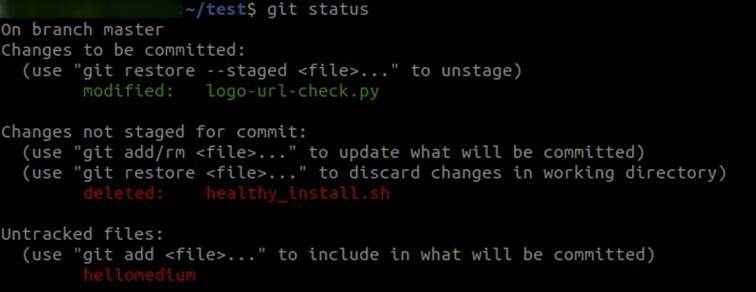
git status komutunun çıktısı
Yukarıdaki ekran görüntüsünde git status komutunun çıktısı görülebilir. Burada bulunan kavramlardan modified değişikliğe uğramış dosyaları, deleted silinmiş dosyaları, untracked files ise git tarafından izlenmeyen dosyaları belirtir. Kırmızı ile belirtilen ifadeler staging alanının dışında olan, yani commit’e dahil edilmeyecek değişikliklerdir.
git add: Üzerinde değişiklik yapılmış, silinmiş ya da yeni eklenmiş dosyaları staging alanına eklemek için (commit’e hazır hale getirmek için) kullanılan komuttur. Başka bir ifadeyle git status ile görüntülediğimiz kırmızı değişiklikleri yeşil hale getirip sonraki commit’e hazır hale getirdiğimiz komuttur.
Kullanımı: git add -a
Yukarıdaki kullanımda git status ile görüntülenen tüm değişiklikleri staging alanına ekler, -a yerine . veya * da kullanılabilirdi. Eğer tüm değişiklikleri staging alanına eklemek istemiyorsak
git add dosya_ismi
şeklinde kullanabiliriz.
git rm: Staging alanına eklenmiş dosyaları silmek ve untracked hale getirmek için kullanılır. Bu işlemden sonra dosya staging alanında silinmiş olarak gözükür fakat durmaya devam eder.
Kullanımı: git rm — cached dosya_ismi
git commit: Staging alanına eklediğimiz değişiklikleri local branch’e göndermek için kullanılır. Best practise’i commit yapılırken bir commit mesajı eklemektir. Bu commit’i daha açıklayıcı kılar ve karışıkları önler.
Kullanımı: git commit -m “Commit mesajı”
git push: Local branch’e yaptığımız commit’leri remote branch’e göndermek için kullanılır. Açtığımız yeni branch var ise (yerelde) bu komut ile o da uzak repository’e gönderilir. Burada bilinmesi gereken önemli nokta, bir commit remote branch’e push edilmeden önce mutlaka yerel çalışma dizini güncel olmalıdır. Aksi taktirde push işlemi hata verecektir.
Kullanımı: git push origin remote_branch_name
Buradaki origin remote repository’nin kök dizinini belirtir ve sabit bir isimdir.
git pull: Remote branch’teki değişiklikleri working directory’e çeker ve local branch ile bu değişiklikleri birleştirir. Yani çalışma dizinimizi projenin son haliyle günceller.
Kullanımı: git pull origin remote_branch_name
git branch: Yeni bir branch oluşturmak, yerel veya uzak branch’leri listelemek ve hangi branch’te bulunduğumuzu görmek için kullanılır.
Yeni branch oluşturmak: git branch new_branch_name
Yerel branch’leri listelemek ve bulunduğumuz branchi görmek: git branch
Uzak branch’leri ve yerel branch’leri listelemek için: git branch -a

git branch komutunun çıktısı
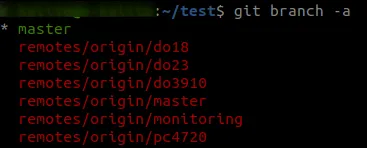
git branch -a komutunun çıktısı
git checkout: Branch’ler ya da commit’ler arasında geçiş yapmak ve yeni branch açıp o branch’e geçmek için kullanılır.
Mevcutta var olan bir branch’e geçiş yapmak için: git checkout branch_name
Yeni bir branch oluşturup bu branch’e geçiş yapmak için: git checkout -b branch_name
Bir commit’e geçiş yapmak için: git checkout commit_id
not: git branch ve checkout ile oluşturduğumuz branch’ler yerelde oluştuğundan bu branch’lerin uzak repository’e gönderilmesi için projenin push’lanması gerekir.
git log: Projedeki commit geçmişinin görüntülenmesini sağlar. Yazar, commit edildiği tarih, commit mesajı, commit id’leri gibi bilgiler ile birlikte tüm commit’ler listelenir.
Kullanımı: git log
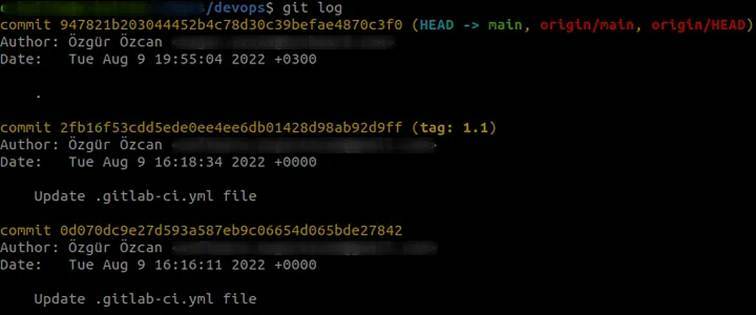
git log komutunun çıktısı
not: Peki yukarıdaki çıktıda geçen “HEAD” ifadesi ne anlama geliyor? Üzerinde bulunan branch’teki en son yapılmış commit’e HEAD denmektedir. Eğer git checkout ile başka bir commit’e geçiş yapılırsa geçiş yapılan commit HEAD olur ve bu commit’e detached HEAD denir.

HEAD kavramının bulunduğu nokta
Bu makale Özgür Özcan tarafından hazırlanmıştır.
It is a fast and distributed version control system that allows changes made to code during software development to be recorded in a safer and more sustainable way, while also enabling us to obtain information about what changes were made and who made them.
Before examining Git commands, let us first look at the areas used in the Git lifecycle through a simple diagram.
Git Commands and the Areas They Are Used In
There are basically two main sections here. The first is the “Local Repo,” which refers to our local environment, and the second is the “Remote Repo,” which is the remote repository where the project is stored. Software developers carry out versioning and development by sending the changes they make in their local repository to the remote repository.
Within these areas, there are also different sections. Let us now examine them.
Working Tree/Working Directory: It is the working directory where the project code is located and where additions, deletions, and edits are made.
Index/Staging Area: This is the section where the changes made in the working directory are kept ready to be committed before being sent to the local branch. The changes added here using the commands we will learn shortly will be included in our next commit.
Local Branch: It is the Git branch where our local changes are stored. The remote repository cannot see this branch. When we commit the files we added to the staging area, that commit is sent to the local branch. The commits in the local branch are ready to be pushed to the remote repository.
Remote Branch: It is the section that constitutes the Remote Repository independently from the local working environment. It is the area where the commits made to the Local Branch are pushed and incorporated into the project. The developments made locally become part of the project code here.
Main Git Commands
First of all, before working on a project on our local computer, we need to include the project files in our local environment. There are two ways to do this: the first is to clone the project using git clone, and the second is to manually create the project directory, then create an empty local repository inside it using the git init command and connect a remote repository using the git remote add origin command. As can be seen, the second method is a bit more laborious.
git clone: As mentioned above, it is used to copy all project files completely. Once the project files have been included in this way, we can start working on the project directly without any additional setup, such as connecting to a remote repository.
Usage: git clone https://gitlab.com/projectname
git status: It is used to check the status of changes made in the working directory of a Git project. Changes that are in the staging area and those that are not can be checked with this command. In the output of this command, the changes shown in green are the ones that are in the staging area and ready to be committed.
Output of the git status command
In the screenshot above, the output of the git status command can be seen. Among the concepts shown here, modified refers to files that have been changed, deleted refers to files that have been removed, and untracked files refers to files that are not tracked by Git. The expressions shown in red are the changes that are outside the staging area, meaning they will not be included in the commit.
git add: This command is used to add modified, deleted, or newly created files to the staging area so that they are ready to be committed. In other words, it is the command that turns the red changes shown by git status into green ones and prepares them for the next commit.
Usage: git add -a
In the usage above, all changes displayed by git status are added to the staging area. Instead of -a, . or * could also be used. If we do not want to add all changes to the staging area, we can use:
git add file_name
git rm: It is used to remove files from the staging area and make them untracked. After this operation, the file appears as deleted in the staging area, but it still remains in place.
Usage: git rm --cached file_name
git commit: It is used to send the changes we have added to the staging area to the local branch. The best practice is to include a commit message when making a commit. This makes the commit more descriptive and helps prevent confusion.
Usage: git commit -m "Commit message"
git push: It is used to send the commits we have made to the local branch to the remote branch. If there is a new branch created locally, it is also sent to the remote repository with this command. An important point to know here is that before a commit is pushed to the remote branch, the local working directory must be up to date. Otherwise, the push operation will result in an error.
Usage: git push origin remote_branch_name
Here, origin refers to the root directory of the remote repository and is a fixed name.
git pull: It fetches the changes in the remote branch into the working directory and merges them with the local branch. In other words, it updates our working directory with the latest version of the project.
Usage: git pull origin remote_branch_name
git branch: It is used to create a new branch, list local or remote branches, and see which branch we are currently on.
Creating a new branch: git branch new_branch_name
Listing local branches and seeing the current branch: git branch
Listing remote and local branches: git branch -a
Output of the git branch command
Output of the git branch -a command
git checkout: It is used to switch between branches or commits, and to create a new branch and switch to it.
To switch to an existing branch: git checkout branch_name
To create a new branch and switch to it: git checkout -b branch_name
To switch to a commit: git checkout commit_id
Note: Since the branches we create using git branch and checkout are created locally, the project must be pushed in order to send these branches to the remote repository.
git log: It displays the commit history of the project. All commits are listed together with information such as the author, the date of the commit, the commit message, and the commit IDs.
Usage: git log
Output of the git log command
Note: So, what does the term “HEAD” in the output above mean? The most recent commit on the current branch is called HEAD. If you switch to another commit using git checkout, the commit you switch to becomes HEAD, and this is called a detached HEAD.
Point where the HEAD concept is located
This article was prepared by Özgür Özcan.